Showing posts with label WER. Show all posts

Sunday, June 26, 2016

GP Pittsburgh 2016: Sunday Morning

8:40 AM: In the hall. Dani’s been working on Super Sunday Series registration, and there are 71 people in the event so far. She has one registration slip that she can’t figure out—the number is illegible and the player’s name isn’t returning any results in the search. I take over. Turns out, that player is Canadian, so I have to change the Country drop down to find him.

9:09 AM: I realize I left my wallet in the hotel room, so I can’t sneak off stage to get a nice, fizzy beverage from the super-secret soda machine in the loading dock. Whomp whomp. SSS registration is up to 124, and I have some time to work on registration for events starting later in the day, like the Eternal Weekend Trial and Modern Mayhem.

9:17 AM: SSS Pairings go out. Final player count: 130. Head Judge Nicholas Sabin is forgoing the player meeting, which is less paper I have to print. Yay!

9:18 AM: There’s some confusion about whether anyone made the last call for SSS registration, and there’s one more player who wants to sign up. The registration staff gets him taken care of, I get him entered in the event, and an announcement is made for the last call. No one else signs up, so the final player count is 131.

9:31 AM: I’m caught up on entering registration for the 10 AM event (Eternal Weekend Trial). I take a few minutes to set up my chart for the day in my notebook. I’ve used an extra column all weekend, Rounds, because, well, different events have different numbers of rounds.


9:39 AM: First match slip from SSS comes in It’s a no show. I band up the registration slips from that event to get them out of the way, which frees up my little basket for results I’ve already entered.

9:46 AM: Snack time. There aren’t any more Swedish Fish in the tubs of “Miscellaneous Stage Supplies” in the judge/staff area, so I fill my jacket pocket with Kisses instead. When I get back to the stage, the HJ of the Eternal Weekend Trial is waiting for a player count update. There are seven new slips to enter. Three of them are for players named Nick. Current player count: 35.

9:57 AM: Last call for the Eternal Weekend Trial. I remember to put purple paper in the printer and print a sign for round end times to go out with the pairings, then go back to entering SSS results.

10:01 AM: Eternal Weekend Trial registration is done, and the final player count is 40. I pair round one, then set the Multi-Print queue. I’m about to print pairings when I realize that I forgot to set the starting table number. Whoops. At least I didn’t print first :)

10:15 AM: A player is missing from the Eternal Weekend Pairings. Turns out, his registration slip was marked with the wrong event (Modern Mayhem). It took a minute to track down where the problem was, but in the end, I got him in the event and assigned him a bye for the first round. There are 56 players currently in Modern Mayhem, and there are two minutes left in the first round of the SSS.

10:25 AM: There’s one table still out in the SSS, and the last call is made for Modern Mayhem. I notice that the match slips for the Eternal Weekend Trial are still on my printer. Hrmmm….

10:27 AM: I pair and print Round 2 of the SSS. I need some judge DCI numbers to enter the last few penalties from Round 1, but it’ll be a few more minutes before I get that. Pink paper is up next for Modern. I remember to set the starting table number this time.

10:30 AM: This was fun and exciting. I entered one of the results from the SSS backward. I just had the players switch seats and then started to do computer things. (Registration was working on sorting out the last two sign-ups for Modern Mayhem because they had some issues with their Modern Passes.) I change the pairings in WER, click “Done”, and get an error message along the lines of “All players need to be matched.” (They are all matched.) All of sudden, all 120-some players in the event appeared in the list of unmatched players, and the only actual pairing is the most recent one I entered manually. I’ll deal with this after Modern Mayhem fires.

10:34 AM: I get the last registration slips for Modern Mayhem, get those players entered, and get pairings out for Round 1. Time to work on this SSS problem. I grabbed the copy of pairings by table and tried to re-match the first two players. Nothing happens. I mean, I click the buttons to enter the pairing, and the players don’t show up in the column of pairings or leave the list of unmatched players. I start to estimate how long it’s going to take me to rebuild the event and then I try clicking a few more buttons. I hit enter from the (empty) search box on the pairings side, and everyone reappears, including my two attempts to re-match table 1, which are now tables 63 and 64. The unmatched player list is still full. I delete the two extra instances of that match, and the unmatched player list is now, suddenly and magically, empty. I click “Done” again. It works this time. That was close.

10:44 AM: The first slips from the Eternal Weekend Trial make their way to me. I get through those and the registration slips for 11 AM Turbo Sealed. There are 7 of them so far.

10:47 AM: Gorilla Todd appears in front of my stage with a cold, fizzy Diet Pepsi and my wallet.

10:53 AM: Three slips still out in the Eternal Weekend Trial. Some Round 2 SSS slips have appeared, but I’m going to leave those in the basket for a few minutes.

11:02 AM: I go to start the Turbo Sealed event, which is only one round, and I realized that there wasn’t an “Enrollment Complete” button. Whoever sanctioned the event sanctioned it as “Player List Only.” This means I can’t pair. I sanction a new event, export the player list from the old file and import it into the new file, and create pairings for Round 1. It takes about a minute. The HJ of the event gets seatings and pairings at the same time. It’s on yellow paper. The next event that fires will also be on yellow paper. Since this event is only one round, I won’t have to do anything else with this event until I have free time to enter the results.

11:24 AM: I band up the rest of the registration slips from the morning events and the match result slips from the first few completed rounds. In the process, I cut my thumb on a piece of pink paper.

11:29 AM: There are two slips left out in the SSS round, and I have to pee sooooooo bad. The 11:30 AM Vintage Plus event has one player registered, so it’s not going to fire. Vintage hasn’t fired all weekend :(

11:36 AM: SSS Round 3 pairs. I really have to pee, but now there are only two slips out in Modern Mayhem. I band up some more slips and drop them in my filing cabinet. There isn’t an event at noon—the next event is the 12:30 PM Standard Plus. I open up that file and start enrolling players.

11:43 AM: Modern Mayhem Round 2 pairs. I sprint off the stage. Brb.

11:52 AM:Ahhh. That’s better. It’s time to catch up on paperwork: banding match slips from finished rounds, entering players into Standard Plus, making sure I have judges entered in the WER files for all the active events.

12:09 AM: Someone handed me two Jeremy Tomacooper Clue tokens a second ago. The Eternal Weekend Trial round flips, and I get the starting table number for Standard Plus, which has 19 players registered right now. There are a couple blue and pink slips in my basket, so I start entering those.

12:16 AM: Table 30 in the SSS lost their match slip. One of the judges on the event asked if I could print a new one—nope :( I handed him some blue paper and asked him to make a match-slip-sized replacement. This is what I get back:


12:32 PM: Standard Plus parings are on the printer on yellow paper, but the HJ is missing.

12:33 PM: A judge asks about information for an investigation: a player is playing with badly warped foils, and she (the judge) thinks that it might be the same player she issued the same penalty to yesterday in a different event. I dig out the event file and check the penalties—it wasn’t the same player.

12:35 PM: There’s the Standard Plus HJ! Pairings for Round 1 go out.

12:43 PM: There are two slips out for both the SSS and Modern Mayhem. I’m betting that SSS flips first, so the printer is set with blue paper.

12:45 PM: I was right. SSS Round 4 pairings go out. The Modern Mayhem HJ comes up with one slip, thinking it’s the last one. Nope. Table 745 is still missing. I start entering players for the 1:00 PM event, which is Team Sealed Plus, while I’m waiting.

12:55 PM: The HJ of the Turbo Sealed event comes back with his match result slips. Team Sealed is about ready to go with 14 teams registered. The mystery of table 745 has been solved—that table has a lengthy extension as a result of the aforementioned investigation. They still have 16 minutes to go.

1:04 PM: After two last-minute team registrations, seatings for deck construction go out for Team Sealed Plus. That event is green. I’m almost out of different colors of paper.

1:10 PM: Table 745 is in! Round 3 pairings for Modern Mayhem go out. The Eternal Weekend Trial is getting pretty close to the end of its third round too, so I switch the printer to purple paper.

1:13 PM: Speaking of Eternal Weekend Trial...Round 4 pairings go out. The first few slips from SSS Round 4 are trickling in now—they’re all no-shows. About 6 of them.

1:17 PM: I have a second, so I enter the results from the Turbo Sealed round. The event doesn’t want to upload because it’s only one round. Two-Headed Giant starts at 1:30 PM, so I open that event and start entering players. I wish I were working a little further ahead on this.

1:25 PM: My match result slips are languishing in the box at registration. I leave the stage to rescue them.

1:31 PM: I print 2HG seatings--actual seatings, since the table numbering hasn't been adjusted yet for the event's space. There are 23 teams total.

1:39 PM: The last slip in Round 1 of Standard Plus comes up. I also discover that the printed schedule I have is all wrong—it says that Legacy Plus is at 2:30 PM, but it’s really at 2:00 PM. The gap in the schedule is really at 2:30. I plan on sneaking away for French fries as soon as Legacy Plus fires off.

1:42 PM: I should drink more water.

2:02 PM: Legacy Plus pairings go out. I go get food. Yay, food!

Thursday, March 31, 2016

The Two-Headed Giant Post

Did you guys know that the Shadows over Innistrad prereleases are about 30 hours from now? No, really. They are. I couldn't be more excited. This set looks awesome, mostly because there's so much Tamiyo in it. I have like a billion things preordered to pick up at the Open in Baltimore next weekend.

Prereleases are great for lots of reasons, but for many players, they're the only chance they have to experience Two-Headed Giant. This also means that for many organizers and judges, they're the only experience they have running 2HG events in WER.

2HG events are mostly the same as individual events. Player enrollment and seating are the big differences, and I have a few tricks that might save you some time.

Enrolling Teams

When you open a 2HG event, you'll notice that the "Players" tab that you're used to has been replaced with the "Teams" tab. It looks like this:


You have two boxes to enter player details before you can hit the Enroll button on the left, and you also have a second tab at the top of the player list on the right side.

The way the left side works is very straightforward: type in two DCI numbers and names, then hit enroll. Both of those players will be enrolled as a team. At the very top, you can enter a team name for them. If you don't, this field will auto-populate with the players' last names, listing the top player first. I recommend that you use the default or be very careful when you're letting players pick team names. I've never been to a team event where someone didn't try to name their team something wildly inappropriate :)

The right side is a little more interesting. I have the players tab highlighted here because it's the most interesting, but there's something you need to know first:

If you add players from the Local Player List, they won't actually be enrolled in the event.
That seems strange, right? That's how it works for every other kind of event. But, this is 2HG, and everyone needs a teammate, and there's no way to pair players from the Local Player List. Instead, it adds those players to this list of players. From here, you can create teams with the players that you've enrolled.*

You can filter this list a few ways:

  • All players.
  • Enrolled players (ones with teammates)
  • Unenrolled players (ones without teammates)
When you're signing people up, it's probably easiest to have the Unenrolled circle checked. That way, you can add players to the event from your Local Player List, switch back to this tab, and pair them.

(If you don't want to add players from the list to get around having to do this, you can always just type in DCI numbers on the left side.)

Creating teams from enrolled players is pretty easy:
  1. Double click the player you want to add to as Player 1 from the list of unenrolled players.
  2. Double click the player you want to add as Player 2.
  3. Click enroll.
Sometimes WER gets stuck and doesn't want to add players. If that happens, just click inside the DCI Number box for Player 1.

Ta da! You've added a team to the event! If you somehow clicked on someone who wasn't already in the event, no worries. You'll get a pop-up warning you that they've already been added.

When you're done pairing teams, you can start the event. Note that players without teammates won't be dropped from the event — they'll still show up under the players tab. To remove them, click their name once in the list (it'll highlight in green), and click the big, red "Un-enroll Player" button at the bottom.

*If you have players who don't have teammates yet, adding them to the list of unenrolled players is a great way to keep track of them. When you're getting close to the event start time, you can randomly pair those players together, or call them up to have them pick their teammates.

Seating

There's some good news and some bad news here. The good news is that you have about a million options for seating players for deck construction. The bad news is that you have exactly one option for table numbering for matches.

Deck Construction

This is from the Seatings tab, which is under the Rounds tab after you've hit Complete Enrollment:


OK. So by about a million, I mean four. WER handles seating for deck construction by player.

Create Across Seating. If you click this button, it will seat both members of a team at the same table.

Create Together Seating. This one seats teammates next to each other. Note that if you have an odd number of teams, it will seat the last team across instead of leaving empty seats.

Create Alone Seating. This gives each team two adjacent table numbers for build, so each player has their own table.

Create Name Seating. This is like Create Together Seating, And by "like," what I mean is that it's identical, as far as I've been able to tell. So, it doesn't really count.

Create Seats Manually. I never press this button. It's too much work. You can do some kind of silly things with it, though, like mix and match across and together seating.

If you add a team after seating players, you'll see a screen like this:


Check the box next to the team's name, then click create seat. If you select one team this way, they'll be seated across from each other. If you select two teams this way, teammates will be seated next to each other. (Keep in mind that seating players isn't essential to continuing the event. If it's easier to hand them their prerelease packs and point them in a direction, you can totally do that, and skip the part where you assign them seats. It won't prevent you from creating rounds or entering results.)

Rounds

This is the part with the bad news. WER only pairs teams and assigns tables one way when it comes to the actual rounds in the tournament: each team is treated as a player. This means that each match (which has four players) is seated at one table. Here's what I mean:


This means that, most likely, you'll have to renumber your tables during deck construction. Fortunately, 2HG construction is 60 minutes, so you'll have plenty of time. Your event might also be small enough that table numbers aren't super necessary, and you can just let people play wherever they want.

A Quick Note on Pairings

When you print Pairings by Name (or press F9, because that's way faster), you're going to get pairings by team name. If you event is enormous (and I hope it is), you might want to let players know ahead of time that the team names are alphabetized by Player 1's last name (or by whatever they selected as their team name, if they named their own teams).


That's it! 2HG events are a ton of fun, and I'm looking forward to battling in a few with Todd this weekend. We have to defend our undefeated run from the Oath of the Gatewatch prereleases a few months ago :D

If you have any questions about 2HG that aren't answered here, let me know! Comment, or shoot me a message :)

Thursday, January 28, 2016

WER: Editing Matches 2 — Cascades

Last week, I talked about editing matches in WER and what to do when you only have one or two tables to fix. This week, I'm going to take the ideas and processes there a little bit further and talk about what scorekeepers call "cascades" or "cascading repairs." They're not nearly as intimidating as they sound.

Common issues that lead to cascading re-pairs are accidental drops and bye issues (which usually only happen at GPs, Opens, Invitationals and the like), and dealing with them uses a similar process to dealing with incorrect results. There are just a few more things to consider and a few more tables to re-pair.


The Theory of Cascading

It's round six of an Open. A player comes up to the stage because his name isn't on the pairings. At the end of the last round, he had 9 match points, still potentially in contention to make Day 2, and he doesn't know why he was dropped.

You can't just pair him against the player with the bye (if there is one), because he's supposed to be paired in this round according to his record, which means he should be paired against someone that has about 9 match points, and 0 and 9 are very different. But all the players with 9 points are already paired. Telling him he can't keep playing isn't an option either, especially if he was dropped as a result of a mistake the scorekeeper made.

You need to pair him with an appropriate opponent, which means you're going to have to stop a match where at least one player has 9 points (and, if you're lucky, that player's opponent has 6 points) and pair him with that player.

Now you have a different player who isn't paired that you need to find a match for. If you're lucky, he has 6 match points (and you have match where a player with 6 match points is paired against a player with 3 match points). You can stop that match and pair your floating player with 6 match points against a player from that match with 6 match points.

Now you have a third player who isn't paired. See where this is going? Eventually, you can break a match in which a player has 0 match points and either pair that player with the existing bye or assign him or her a bye, whichever the case may be.

However, following these steps in this order is extremely time consuming. By the time you get to the second or third match, there's a good chance that match has already started playing, and stopping matches that are in progress is a Bad Thing.

It might be tempting to delete the pairings, re-add the player to the event, and re-pair the entire round, but that's time consuming in a different kind of way: it causes a delay to the entire event instead of just a few matches, and it can be confusing for players.

We'll get to what steps to follow instead in just a second.


A Few Words on Accidental Drops

Players being dropped when they didn't mean to drop is one of the leading causes of cascading re-pairs. Before you start breaking tables though, you might want to figure out what happened that led to the drop — it might give you some insight into what you're going to have to do or offer an easier solution.

It's important to note that you don't want to spend a ton of time on this, especially if the round clock is already ticking: your Prime Objective is to get players in seats and playing Magic, and trying to get to the bottom of what happened delays that. You can always go back to the slips later to figure out what happened, and this is a useful learning exercise ... but it's secondary to fixing the problem.

That said, these are the common issues I run into:
  • Someone made an incidental marking in the drop box.
  • A name on the drop sheet was illegible, or I misread it.
  • I misclicked.
  • The players marked the wrong drop box.
  • The player no-showed and didn't tell anyone he didn't want to drop.

In most situations, you're going to be doing the same thing. Start by letting the Head Judge know what's going on, even if the mistake was yours. If the mistake wasn't yours, he or she may have a reason to not let the player re-enter the event (but in most cases, if it's the beginning of the round after they were accidentally removed, re-entering them is the best choice).


Re-adding Dropped Players

This is almost always the first step in dealing with a cascade, and you want to do this before you start fiddling with pairings because you can't add a player in the middle of editing matches. You need the missing player in the event for your match-editing efforts to be effective.

To do this, go to the Players tab in WER:


By default, this screen will show you Active players. Click in either the All or Inactive circles above the player list to find the players that have been removed. If your event is large, you can use the search box above that to narrow down the results.

Double-click on the player you want to re-add. Their information will populate in the fields to the left. Make sure you're re-adding the correct player, then click the "Re-Enroll" button.

You'll be prompted to make a choice about what to do with the player. Assigning them a bye for now is fine; you're going to fix pairings in a second.


Crafting Correct Pairings

I use crafting here because there is a bit of an art to identifying the optimal matches to break and re-pairings to implement. There are "rules," of course, but every actual, live tournament is different. They have different matches with draws. They have different pair-downs. The player you need to re-add has a different record. This means that what you will and won't be able to do can vary pretty wildly. Once you have the missing player added back in you're going to want to do the following:


  1. Figure out how many and which matches you need to break.
  2. Send a judge to stop those players from playing.
  3. Do some computer stuff.
  4. Send players to their new, correct tables. If it's possible, send a judge with each match to take care of their time extension.
In later rounds and with players with better records, the complexity of cascades increases. More changes are necessary, and there are a high number of possible matches that could work.

Figure out how many and which matches to stop.

Honestly, this is the hardest thing about cascading re-pairs.

If you get stuck on this, or if pairing up, down and with draws doesn't make sense to you, just split one match per occurring match-point score in the event that's equal to or less than the match points of the player you had to re-enroll. When you get to re-creating the pairings, you can work from top to bottom, and everything will be Fine. 

For most situations, you'll be breaking a number of matches equal to the number of rounds the dropped player has won plus one. In our example from earlier, that's going to be four matches: one with 9-point players, one with 6-point players, one with 3-point players and one with 0-point players.

Depending on how your pairings break down, this number may fluctuate some. Still using that previous example, if there are paired-down matches in all of those brackets and no bye, you might only break three matches (a 9-point vs 6-point match, a 6-point vs 3-point match, and a 3-point vs 0-point match; the 0-point player is assigned the bye).

These two things — match points and pair-downs, are going to be your bread and butter of cascades at most events.

At larger events draws can also play a part in which matches you split. You can pair a player with 9 match points against a player with 6, 7, or 8 match points. If that player's initial opponent had 6 match points, you can pair him or her against someone with 3, 4, or 5 match points, and so on.

This gives you some flexibility, which might reduce the number of matches that you have to re-pair. However, this can be pretty tricky to figure out. If pairing this ways with draws trips you up, you can ignore them and still end up with a reasonable set of pairings.

Finally, keep in mind that your cascaded pairings don't have to be 100% perfect. Every player should paired in their bracket, or paired-up or paired-down in a way that makes sense based on their match points. If you end up with an extra pair-up or pair-down when everything is said and done, it's not the end of the world, especially if it means that fewer matches are disrupted.


Send a judge to stop those players from playing.

The computer stuff here can take a minute or a few, and, unlike with a simple flipped result, it's more important to re-seat the players concurrently with performing the re-pair. Because of this, as soon as you identify the matches you want to split, it's important to send a judge to stop those matches.

Seriously. This is super important. If you get through all the re-pairing only to discover that one of the matches you wanted to change has already started playing, one of two things has to happen: you either have them stop anyway (which is a Very, Very Bad Thing), or you have to start over (which costs a lot of time).

As soon as you know what tables you want to split up for the cascade, get those players up to the stage.

Do some computer stuff.

After you've figured out what needs to happen, making the computer match is the easy part.

First, you're going to either:
  • Print or grab a copy of the current pairings
  • Make a backup of the tournament
  • Do both of those things
(I strongly recommend doing both.) This will help you if Bad Things happen and you need to re-create the round as it was before you started changing things.

Second, you're going to break all the matches you decided to break. Finally, you're going to re-pair all of the floating players. All of this happens in the Edit Matches interface, which you can get to by clicking "Edit Matches" on the Rounds tab. That button is above the grid that shows you current matches and results.

The interface looks like this:


Current matches show up on the left side, while unpaired players show up on the right.

Breaking Matches

To break a match, click on it on the left so that it's highlighted in green, then click the Un-Match button. You want to do this for all the tables you identified earlier. Byes also show up here. If you assigned the re-enrolled player with a bye earlier, you'll have to un-match that "table" as well.

*If you're not sure what matches you should break, this screen can be a useful tool for figuring it out. Current match points display with each player in the grid on the right, in descending order. You can see what the new pairings will look like — in this case a player with 3 match points will be paired against a player with 1 match point, and two players with 0 match points will be paired.

Creating New Matches

Once that's done, you should be able to go through the players on the right side from top to bottom, pairing them as you go. I always like to start with the player I had to re-add to the event.

To do this, click the check boxes next to the names of the players that you want to pair, then click the Match button. When you're down to one player, the Grant Bye button will also be active. These matches will fill in the tables that you split, from lowest number to highest. So, in the screenshot above, that first match would be assigned to Table 2.

Something else to keep in mind ... the first box you check will be the top player on the match result slip and the left player on the matches screen when you're done with all of the re-pairing. If you're manually creating new match result slips, this should be the first player you list.

Speaking of time extensions ...

Send players to their new matches.

I like to do this as I go. As soon as I pair a match, I call those players' names (they're standing in front of the stage because I sent a judge to stop their match earlier), and tell them their new table number, then proceed to pairing the next match.

This is more helpful when the cascade affected more matches: it means that the time extension on the first match to get re-paired is shorter than the time extension on the last match to get re-paired. But sometimes I'm done re-pairing before all the players are at the stage, or I only had to fiddle with two tables. Do what you're comfortable with, what reduces confusion for the players and judges involved, and what's efficient.


The only really tricky thing about cascading re-pairs is optimizing the matches that you end up splitting. Even then, the "optimal" set of re-pairs isn't the only way to get to a good set of pairings when you're done — if you have to split one or two more matches to simplify the process, that's OK. It's way better than re-pairing the entire tournament. Just make sure you get those matches stopped ASAP :)

Friday, January 22, 2016

WER: Editing Matches (aka How to Not Repair the Whole Round)

In a tournament where everything goes right, you'll never have to use WER's edit matches function. But, tournaments aren't always perfect. In fact, they rarely are, and the more players you have, the more likely it is that one of them fills out a match result slip incorrectly or marks the wrong drop box. 

As a scorekeeper for any event, I usually have this one primary goal:
Fix the things that break with minimal disruption to the rest of the event.
The important thing here is that my goal isn't for nothing Bad to happen — that's unrealistic. I *try* not to make mistakes, and I'm pretty good at it. But, it's way more important to be able to identify that a Bad Thing has happened and know what to do about it. After all, players are just as prone to making mistakes as I am.

I'm going to go through a couple things: why you want to use partial re-pairs instead of re-pairing the entire round, when to do so, and how to do it.

Editing Matches, or the Partial Re-pair

When Something Bad happens, it's tempting to delete the pairings for the round, fix the problems, and re-pair. This has a couple of distinct disadvantages:

It costs everyone time. While the entire round is being re-paired, players aren't playing Magic. It also means that the tournament end time is pushed back, which can be more or less problematic depending on whether you have venue time constraints and how far your players traveled.

It's confusing for players. Communicating that a round is being re-paired is a sticky thing, especially if matches have already started shuffling and making mulligan decisions. Often, the error that needs to be corrected (the mis-entered result, for example) isn't discovered immediately, and in the time it takes to figure out what's going on and decide on a course of action, players have started doing their thing.

The biggest advantage to only re-pairing the players that are affected by the error is just that: a limited number of players will be affected. The time extension to those matches may cause a delay, but re-pairing everyone in the tournament will definitely cause a delay. Often, a well implemented fix is invisible to the rest of the tournament.

There are a very limited number of situations in which re-pairing the entire round is better.

That's really important, so I'm going to say it again. Most of the time, re-pairing a single match or a few matches is better than re-pairing everyone. If it's going to take you longer to figure out pairings than it would to re-pair entirely and restart the round, go ahead and make new matches. This is likely to be the case in the later rounds of small events, where many of the players have already played each other.

But, in general, you should change the minimum number of matches required.

Before You Do Anything ...

... talk to the Head Judge of the event.

  • You want to make sure they know what's going on.
  • If the error was caused by players (for example, filling their match slip out wrong), the Head Judge should decide whether to correct the error*.

Make sure the Head Judge and/or tournament organizer are on board with what you want to do. They might have concerns that you haven't considered.

(*If you're the Head Judge, and the error is caught at the start of the next round, you should *probably* fix it.)

So, when should you edit matches? There are two common situations, incorrect results and accidental or missed drops. Incorrect results are usually pretty easy to deal with. Accidental and missed drops can be more problematic, so I'm going to cover them in a future post all their own.

Fixing an Incorrect Result

Incorrect results happen one of two ways. Either the scorekeeper messes up, in which case it should always be corrected, or the players mess up, in which case it's up to the Head Judge on whether or not it gets corrected. Regardless, the process is the same, and it's pretty straightforward.

You're going to have the players whose result was incorrect switch seats.

Why does this work?

Let's say that you and I battled in Round 3, and at the beginning of Round 4, we realize that we wrote down that I won when you really did. You have 6 match points (which should be 9), and I have 9 match points (which should be 6). I've been paired against someone with 9 points and you've been paired against someone with 6 points.

If we switch seats, we'll both now be paired against someone with an appropriate number of points. It's even OK if one of us was paired up or paired down, because that pairing would have happened to one player with that number of match points anyway.

What needs to happen?

I'm going to split it into two sets of steps, the real world and the computer. This is an insanely important distinction: the computer has to match reality ... eventually. It's more important to get the players playing Magic than it is to fiddle with the computer pairings. You can do that after they're seated and playing. A judge, or you if you have time, can take their corrected slip out to them after the computer is fixed.

Real World

An incorrect result is usually brought to a scorekeeper's attention by a player noticing that his or her match points are wrong. If you're lucky, both players in the match will come up at the same time. If not, you'll have to figure out who the opponent was.

  1. Identify the point of the error. You'll need to know the round, the table number and the players.
  2. Verify that the result is incorrect. If the result was mis-entered, you can do this by looking at the slip. If the slip was filled out wrong, you'll want to verify with both players that the recorded result is incorrect.
  3. Find out where both players are playing this round. They may be able to tell you their current table number, which will save you a little bit of time. Write it down.
  4. Have the players switch seats. For large events, send a judge with them to verify that they haven't already played their new opponent. WER won't let you pair players that have already played when you try to pair them, but that step comes later.
  5. Make sure they get an appropriate time extension.
  6. Commence computer fiddling.

Computer

Now for the fun stuff: D

0. Make a backup if you haven't already.

You know. Just in case.

1. Fix the incorrect result.

This is really important. If you forget to do this (like I do ... way more often than I want to admit), you're going to have the same problem at the start of the next round. To change the old result, select the round from the Rounds drop-down on the Matches tab. After you've done that, changing the result works just like entering a result does:


2. Enter the Edit Matches screen.

Once you've done fixed the old result, switch back to the current round. There's an "Edit Matches" button. Click it:


3. Change the pairings for the current round.

The Edit Matches screen looks a little bit like this:


In this screenshot, I've already split the two matches that need to be changed. Normally, you'll see all of the paired players on the left side of the screen, and the unpaired players (which will usually be empty) on the right side.

To unpair a match, select it from the left column by clicking on it, then click the Un-Match button. Both players from that match will be transferred to the right side. You'll want to do this for both of the matches that you need to split. (You did write down those table numbers, right?) Make a note of the original pairings before you do this, because you may need to reference it when you're creating the new pairings.

If you already corrected the result from the previous round, the players' correct match points should show up in the Points column, which makes pairing them correctly pretty easy. To double-check, refer to the note you made when you unpaired the matches.

When all of the players are paired or granted byes, you'll see a blue Done button. Click it to save your changes. You'll jump back to the normal Rounds tab with results entry for the current round.

If Swapping Seats Doesn't Work ...

... you're going to have to make one more change. This happens when one of the players being swapped has already played their new opponent. It's unlikely at large events and in early rounds smaller events, but you might run into it at your PPTQ or IQ.

Let's go back to our illustration from earlier when you and I were playing. The scorekeeper has fixed our result and told us to switch seats. I'm going to table 13 to play against someone else with 6 points, but when I get there, I discover that I'm now paired against the player I played in Round 1. That's no good.

The quickest way to solve this problem is to talk to the players at table 12. Make sure that they also have 6 match points (if they don't, check table 14 too), then switch one of them to the match at table 13. In this case, I would switch places with one of the players at table 12, and that player would move to the seat at table 13, where you were originally seated.

If this happens, it's extra important to write down the names of the players who are actually playing at each table and use that to adjust the computer pairings rather than relying on memory or the number of match points. It's better to get it right now than have to fiddle with it while you're entering results or at the end of the round.

Result Slips

The last thing you need to do is make sure you get accurate result slips to the players. Unfortunately, WER doesn't let you print individual result slips. You can reprint all of the slips for the round after you correct the pairings.If your event is large, it may be more efficient to make your own mock match result slips, or write in the correct names on the old ones.

If you do anything but print entirely new slips, be careful that the order of the players matches the order in WER (the player on the left in pairings is the top player on the slip). Otherwise, you increase the odds that you'll mis-enter the results and have to re-pair at the beginning of the next round too. And that's Bad.


Re-pairing individual matches isn't that scary. It's just a matter of having players switch seats and then doing some computer stuff, which you can do at your own pace once they're playing. It's one of the most versatile tools available to scorekeepers to fix common (and plenty of uncommon) problems, and incorrect results is just the start.

Monday, December 14, 2015

WER: Local Player List

The Local Player List is one of WER's most useful features for store-level events. For players, it means that they don't have to worry about remembering their DCI number from week to week to play in Friday Night Magic or the next Prerelease. For judges and organizers, it means that they don't have to fiddle around with numbers for players that they know well.

You probably use this feature whenever you're running an event in WER. It looks something like this:


It's pretty easy to use this list to enroll players in events:

  • Use the "Search" box at the top to filter the results if your list is particularly long. You can also filter the list with the All, Enrolled, Unenrolled, and Judges buttons. Unenrolled is the default.
  • Click the checkbox under "Select" next to the player(s) you want to enroll.
  • Click the green "Enroll Selected" button at the bottom.

Note that you can check multiple players at once, in which case clicking "Enroll Selected" will add all of them to the event, including checked players that are currently hidden from view in your search results. There's a convenient Selected Players count at the bottom of the screen to help you keep track of how many players you're enrolling. 

What are all those other buttons for, then? I'm glad you asked! We'll go from left to right.

Pre-Enroll

This button is gray until you've selected at least one player from your Local Player List, then it turns blue. Clicking on it will add these players to the event, but it will add them in a brand-new "Pre-enrolled" tab on the active player list:


Players on this list aren't actually active in the event, and if you start the event with players on this list, they won't be paired for round one. However, if you double-click a name on this list, the player will be moved to the "Players" tab, which actually enrolls them in the event.

This feature is great if you take registration in advance of some of your events, like Prereleases or PPTQs. It's especially useful if you have a maximum number of players that can participate in that event because you can track how many people have expressed interest or paid their entry fee.

On the morning of the event, as players check in, you can quickly transfer them to the list of enrolled players. When the event starts, you'll also have a handy list of the players who preregistered and didn't show up that you can reference to process refunds or whatever other bookkeeping you need to do.

New

This button opens a small dialogue that you can use to add players to your Local Player List. It won't add that player to your active event, but after you've added them to the list, you can use their entry to enroll them.


Since you can only pre-enroll players from the Local Player List, you'll need to use this to pre-enroll a player who's never played at your location before. It's also useful for adding judges who have never played in your events.

You don't need to manually add a player to the Local Player List if you're enrolling them into an event; if they aren't already there, they'll be added automatically.

Set As Judge

This button is grayed out unless one or more players are selected from the list. Clicking it flags all of the players you've selected as judges, which makes their names and other information appear in bold.

Yep. That's it.

Anyone who's been entered as a judge for an event (or DMed for a sanctioned D&D group) will also appear in bold on your Local Player List.

Edit

Editing a player works the same way that adding one does:


Well, with one caveat: you won't be able to edit the player's DCI number. Since that's the unique identifier that WER uses for players, you'll have to create a new record to use a different DCI number for a player. You can use this form to unmark a player as a judge or DM or edit their name or country.

However — and this is a big however — these changes only take effect on your computer. If a player has an issue with their name, you can fix it for them for your events only. They'll need to contact Wizards Customer Service to change it permanently.

(You can also edit a player's name from the enrollment fields on the Players tab, and those changes will be reflected in your Local Player List. You can do it as a player is enrolling by typing into the fields before adding them to the event. If they've already enrolled, click their name in the player list. make the necessary changes, and click "Update.")

Remove

You can permanently delete a player's information from the list with this button, and by "permanently," I mean "until they play in another event."

Removing a record can be useful if you've had to switch DCI numbers for one of your regular players. By removing the old number, you won't have to worry about enrolling them with the wrong record.

Exporting and Importing the Local Player List

Yes, of course you can do this! And, of course, I recommend that you keep an export saved somewhere safe, like on Dropbox or a separate computer, just in case you need to switch enrollment to a new computer or if something Bad Thing happens to your existing one. Especially at the local level, players don't always know their DCI numbers, and losing this information can cost a lot of time and hassle.

Backing up this information uses the same export/import process that WER's other backups use.

The Import and Export buttons are at the top right of the Local Players List, off to the side of the search bar.

Exports

This is the easy part.

  • Click Export Players
  • Choose a destination. Dropbox or another shared folder is a good choice.
  • Give the file a unique name. I like using the computer and the date: [Store] Event Laptop — 12-12-15
  • Save

The list is exported as an .xml file, which you can open in Notepad, Excel or similar programs. You shouldn't need to, but if Something Weird happens, you can. Opening it in a plain text editor will give you a bunch of names and numbers and symbols that will be harder to parse than the resulting Excel view:


Naturally, your export will have actual DCI numbers in that column. I've omitted them, as always, to protect the innocent.

In a pinch, you can use this to look up DCI numbers for your local players. Even better, you can just import the entire list into WER.

Imports

Importing a Local Player List works very similarly to other WER imports, except it has one extra step.

  • Click Import Players
  • Navigate to the file you want to import, which is most likely your most recent backup
  • Click Open
  • Set column headers*
  • Click Import
The column headers step has tricked quite a few people. When you've selected the file you want to import, a box will pop up that looks like this:


You won't be able to scroll down. This isn't the list you're importing, it's just a preview of the file layout, which you'll use to assign headers to each column.

Don't just click import. You have to assign column headers first. Otherwise, Bad Things will happen.

If you're importing a player list that you exported from WER, the column headers should be in this order:

  1. First Name
  2. Last Name
  3. Middle Initial
  4. DCI Number
  5. Country
  6. Is Judge

By "Bad Things," I mean that I've seen imports without file headers randomly flip first and last names and some other silly things that you really don't want to have to clean up later.

This import will add the players to your Local Players List. Players that already exist won't be duplicated, but you won't get any confirmation about the number of players that were added or skipped from the import.

I'll stop here because you should go back up your Local Player List.

No, really. You should. Trust me. I know.

Monday, October 5, 2015

WER: Sealed PPTQ Top 8s

This past weekend, my area hosted two Sealed Preliminary Pro Tour Qualifiers to celebrate the release of Battle for Zendikar, and I also got a few messages from judges asking about the best way to handle their top 8 brackets in WER. There are two things that make this a little complicated:


  • WER won't let you make pods for non-draft events, and these events are Sealed.
  • WER defaults to pairing the top 8 by seed, which isn't any good for Sealed PPTQs. Whoops.
Given the problems that draft pods can cause with WER, it might not be a bad thing that you can't create a pod for these events ;)

Let me back up a little bit. If you're not familiar with the format guidelines for Sealed PPTQs, the top 8 draft portion isn't paired the same way as the top 8 of a constructed PPTQ. Instead, players are seated randomly around the draft table and then paired according to where they sat. The play-draw rule still applies as it would for a seeded bracket, using standing after the Swiss rounds.

Here's the draft seating chart from the MTR:

And here's the draft bracket from the MTR:


Note that in this bracket, the first seed isn't necessarily playing against the eighth seed. They could be playing anyone.

Randomizing Seating

There are a bunch of ways to randomize seating. You can use the seating function in WER and uncheck the seating by name box. You could also use dice, Magic cards with different converted mana costs, or any other randomization method. You do not, however, want to generate top 8 pairings and use those to determine seating, because these aren't random; they're based on Swiss standings.

Creating Pairings

The bracket above reflects the appropriate pairings. Here are some tricks to remembering how it works when the bracket and seating chart aren't available:

  • In the first round, each player plays against the player sitting farthest away from them.
  • A player can't play someone sitting next to them until the final round. They also can't play anyone who would have played someone sitting next to them until the final round. This means they'll be playing someone who was sitting two seats away.
WER won't create the correct pairings for the quarterfinals or the semifinals because it defaults to the seeded bracket pairings. You'll have to manually update the pairings to reflect the randomized draft bracket by using the Edit Matches screen.

Be extra careful with the semifinal pairings. WER will default to pairings that are based on Swiss standings if it can, and they're probably not correct. I recommend writing out a bracket like the one from the MTR, filling it in with the players' names, and entering the WER matches for the entire top 8 when the tournament is finished.

Friday, August 21, 2015

WER: Handling Prizes and Standings Exports

While handing out prizes isn't strictly a scorekeeper operation, it's something that they (and judges) are often called on to do at events from Friday Night Magic to SCG Opens. Speeding this process up makes everyone happier -- less standing in line, more cracking packs or spending store credit -- and having a set method going in not only makes it faster, it also helps with your organization and reconciliation.

My favorite method applies to events with a prize structure based on players' final records, and might just be useful for you tonight at Friday Night Magic.

If you're giving out prizes based on standings instead of match points, you have to wait until the last round is over before you can do much of anything; otherwise, you can start giving out prizes as soon as the last round starts.

For a four-round Swiss event, you'll also need a printed copy of standings after Round 3. The Standings tab in WER (pictured below) does update in real time as results are entered, but that doesn't help you keep track of which players have reported their final-round matches and which ones have received prizes. You also can't write on it.

Well, I mean, you can. But your Tournament Organizer might be a little upset by that.

(DCI Numbers removed to protect the innocent.)

Update the points on your printed copy of standings as results are reported and give players the prizes that correspond to their new record.. Personally, I use these marks because they're simple and clean:

  • Loss: circle the player's match points
  • Win: Single diagonal line through their old match points, write in the new total next to it.
  • Prizes: Highlight or cross out the names of players that have received prizes and make a note of prize options (set, store credit alternative, etc.)

I also like using the standings sheet to note things like which players are getting random FNM foils or other door prizes so I can hand them out with the prizes for top finishers.

You can enter results after everyone has prized out, or as the round progresses. Doing it later frees up your time a bit, which can be helpful if you're at Friday Night Magic and juggling Standard and Modern events or helping out with the register. Just make sure you get them in, and get the event uploaded, before the night is over so everyone gets their Planeswalker Points.

Scaling

My other favorite thing about this method is that is scales well to any size event. It works equally well for my 8-player mock event as it does for the 300-player Challenges we ran in GP London last weekend. Scaling up to *that* many players requires modifying the system slightly so that multiple people can access the third round standings and record new information.

There are a few ways to do this.

First, split the physical pages of standings into different stations. You can divide stations by record going into Round 4 or by last name by taking advantage of the ability to print Standings by Rank or Standings by Name.

If you have a computer for everyone helping with prizes, you can also use Google Docs (which might be the greatest thing ever for event operations). Getting the standings information into spreadsheet format requires a little bit of work.

Exporting Standings to Excel

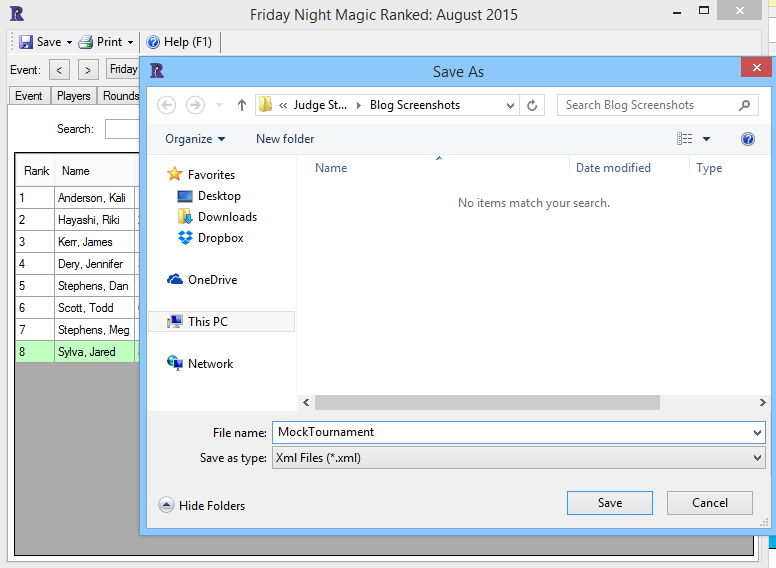
To start, navigate to the Standings tab and click "Export Standings" (see image above). Enter a unique file name. Using the tournament type, date, and round works well. I called this one MockTournament because...it is :D


The standings export is an XML file, which looks gross and isn't particularly useful. Change the file extension* to an Excel extension, like .xls. You can do this by renaming the file if you have file extensions shown in your folders (which I highly recommend). Your computer will warn you that changing file extensions can do Bad Things to files. Click "OK", then open the file from the folder where you saved it.

You'll see a few more prompts of the "hey, you're doing weird things with this file" variety. Click "Yes" for the first one. Leave "As an XML table" selected for the second one, and click "OK."


Wait. You're not done yet. There's one more. Just click "OK" on the third pop-up, and you'll get a very pretty spreadsheet:

(DCI Numbers removed to protect the innocent.)

Now that you know how to create them, having standings in Excel is also useful for things other than just prizes:

  • Monthly Friday Night Magic leaderboards
  • Magic League point tracking
  • Formating standings to post online

Enjoy your FNMs :)

Tuesday, June 23, 2015

WER: Backing Up -- Importing and Exporting Events

(It's been a busy few weeks! I still have some posts coming about GP: Vegas, and Charlotte last weekend. Additionally, look forward to a guest post by judge and registrar extraordinaire, Jeff Darran!)

Your probably won't need to make use of back ups much for your run-of-the-mill Friday Night Magic events, but for PPTQs, IQs, or other larger events, they can be invaluable.

At larger events, the scorekeepers make a back up every round. This does a couple things:
  • It's a reset button if things break. Instead of rebuilding the entire event, you get to start from the most recent round.
  • It makes a copy of files available to other staff members, which can be useful for referencing pairings and standings.
Some independent event series qualifiers, like StarCityGames.com Invitational Qualifiers, also require tournament files at the end of the event to verify the results. That file is basically a back up, and the process for creating it is the same.

Export

To export an event, find the Save menu from within the event. There's only one option under this menu: Export Event. Click on it.


You'll see a familiar save dialogue. The default file name is [Event Name in WER].wer. The default event names are based on the type of tournament you're exporting and will be very similar. If you're creating back ups of multiple events in one place, you should rename the file to something more distinguishable. I like to use the date and format, and when that's not enough (like at Grand Prix where they may be two Standard events on Saturday), the event's start time.


Import

The option to import a back up isn't available from within the event, You'll need to go back to WER's main screen, the one from which you usually schedule and start events. This time, you're looking for the Open menu:


Click Import Event. (Restore Backup is NOT the option you want here. That's looking for a .dat file that has all of the information from all of the events you've run in WER on the computer you're using.) Similar to the dialogue from above, you'll be asked to choose a .wer file to import. If you changed the file name, you shouldn't have much trouble finding the right tournament ;)

Once you choose the file you want to import, you might see a warning like this:


Any file with the same sanctioning number as a tournament that's active under your WER login will prompt this pop-up. If you're importing a file in a different state -- in a different round, with different players, or before whatever exploded that necessitated restoring a back up -- it will completely overwrite the file that WER is currently accessing. Most of the time this is a good thing.

And that's it! The process for exporting and importing events is from WER is fairly straightforward, and having a back up can save you quite the headache :)

Sunday, June 7, 2015

WER: Importing and Exporting Player Lists

Being able to take registration for an event on two computers, or a computer that isn't the one you're running the event from, can be the difference between starting on time and starting late. It's also how we manage to use separate stations for registration and scorekeeping at larger events.

Imagine Friday Night Magic at your FLGS. For many stores, their register and tournament computer are the same thing, and between getting players registered in WER and their last-minute card or pack purchases checked out, things can slow down to a crawl. Even if you need to run the event from the register computer for whatever reason — it's the only one connected to a printer, or close to the play area, for example — you can enter players on a different computer and import the list when it's time to pair round one.

The buttons you need are on the same screen you use to enter players:


One very important thing to note: if you press "Enrollment Complete" at any point, the Import and Export buttons will disappear. You'll still be able to add players to the event, but you won't be able to export the player list.

Click "Export." You'll get a dialogue box asking you where you want to save the exported list:


I usually prefer a cloud storage folder, like Dropbox or OneDrive, that I can access from the computer I'm going to be using to run the event. You can also save to a flash drive or a network folder if your store has that kind of thing set up. Note that the default name for the file is "EnrolledPlayers.xml" that you'll probably want to change it to something more specific, like MMDDYYFNM.xml.

One note on file types: WER uses two kinds of exports:. wer files and .xml files. For backing up and re-importing complete events, it uses. wer, which contains all of the information about the tournament. For player list and completed event copies, it uses .xml. If you're saving a. wer file for the player list, you clicked the wrong button.

When you click "Import," an identical dialogue pops up asking what file you want to import. You'll only be able to select an .xml file. Select the file for your event (which you named something more specific than "EnrolledPlayers.xml" so you could tell which one is the correct file), and click Open.

WER will do some stuff. If you're importing a few players, it processes very quickly. If you're importing more than about 50, WER will take its sweet time, and on my computer it likes to flicker, just to make me worry that it's doing Something Bad. When the import is complete, you'll see this:


The number of players added to the event should match the number of players from the file you imported. If players weren't added to the event, you'll see how many next to "players skipped." The most common reason for the import to skip players is because they're already enrolled, which might happen if you're importing multiple files or if you started to register players with this computer before you switched.

As long as the number of players in your event matches the number of players you're supposed to have, you should be good. Yay!

I mentioned in the beginning that you can also use the player list import and export to take registration on two computers and combine them. This works because the "Import" button doesn't disappear after you import one player list, and you can import as many additional files as you need. The process is the same:
  • Take registration at both registers/computers.
  • A few minutes before the event start time, hit "Export" to save the player lists from both computers. Make sure that either each file name is different or the files are exported to different folders.
  • Open the event on the tournament computer. Hit "Import" and select the first list. Wait for WER to do its thing. Hit "Import" again for the second list. You may see some skipped players that were accidentally registered into both files.
  • Click "Enrollment Complete" and pair round one! 
It's very important that you don't click "Enrollment Complete" before you're finished exporting or importing files, because those buttons disappear as soon as you do.

Hopefully this saves you some time and frustration getting those larger in-store events started :D